
Google Business Profile Setup for Nigerian Businesses
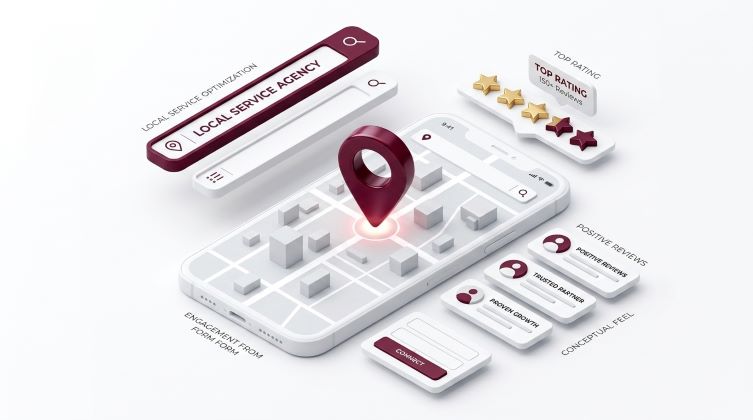
- A Google Business Profile is a free listing that can appear in Google Search and Google Maps.
- Use your real business name and an accurate location, or a service area if customers do not visit you.
- Verification is what makes your information eligible to display across Google, so do not skip it.
- Complete, accurate details work better than a half-filled profile.
- Setup is only the start: reviews, updates and a good website keep it working.
Google Business Profile Setup for Nigerian Businesses
When someone needs a service, they rarely start by typing a website address. They search, look at what appears, and pick a business that looks real, close by and easy to contact. For many local businesses, what appears first is not a website. It is a Google Business Profile.
This guide walks you through Google Business Profile setup for Nigerian businesses, from checking for an existing listing to verifying your profile and filling it in properly. You can follow it yourself, step by step.
What is a Google Business Profile, and why does it matter?
A Google Business Profile is the listing that shows your business details when people search for you or for services like yours. It can include your name, category, address or service area, phone number, hours, website, photos and reviews.
Need help with this? Tell us about your project and we will send a clear, written quote.
Request a QuoteFor a Nigerian business it matters for simple reasons:
- Customers often check a listing before they visit, call or message you.
- Accurate hours, directions and contact details reduce wasted trips and missed calls.
- Reviews and photos help people choose between similar businesses.
Google says local results are based mainly on relevance, distance and prominence, and that you cannot pay for a better local ranking (see Google’s Business Profile Help page). A well-built profile helps with the first and third of these.
Before you start: what to prepare
Gather these before you begin, and setup will take far less time:
- Your real business name, exactly as it appears on your signage, stationery and website
- Your address, written clearly, with a nearby landmark or junction noted for your own reference
- A phone number that is answered by your business
- Your website address, if you have one
- Your opening hours, including any days you close
- A list of your main services or products, in plain language
- A few real photos of your premises, your work and your team (with permission)
- A Google account for your business. Google recommends signing up with your business email domain if you create a new account.
Step 1: Check whether your business already has a listing
Search for your business name on Google and Google Maps. Sometimes a listing already exists, created by Google or by someone else. If it is yours, you can claim it instead of creating a duplicate. If nothing appears, you will create a new profile in the next step.
Avoid creating a second profile for the same business, as duplicates confuse customers and can cause problems later.
Step 2: Sign in and start your profile
Go to Google’s Create a Business Profile page for the official steps. In summary, Google asks you to:
- Sign in to your Google account, or create one.
- Go to the create-a-profile page and enter your business name.
- Search for and choose your business category.
- Say whether you have a location that customers can visit.
- Enter your address, or your service area, or both where relevant.
You may also see an option to create a basic website from your information. If you already have a website, you can skip this.
Step 3: Choose your name and category carefully
These two choices have more effect than most owners realise.
Your business name
Google’s guidelines for representing your business say your name should reflect your business’s real-world name, as used consistently on your storefront, website, stationery and as known to customers. Including unnecessary information in the name is not permitted and could result in the suspension of your profile.
In practice, do not add extras such as services, locations or promotional phrases to your name just to try to rank. A name like “Best Cheap Plumber Lagos 24 Hours” instead of your real business name is the kind of thing to avoid.
Your category
Choose the category that most accurately describes what your business is, for example “Dental clinic” or “Electrician”. A specific, accurate main category helps Google match you to the right searches. You can add secondary categories later where they genuinely apply.
Step 4: Add your location or service area
This step trips up many Nigerian businesses, so take your time.
- If customers visit you, enter your address as accurately as you can. If Google cannot place it exactly, you may be asked to position a marker on the map, so zoom in and place it carefully at your entrance. Google also expects businesses that show an address to have permanent fixed signage of their business name there.
- If you serve customers at their homes or offices and do not receive customers at your own address, Google says you must hide your address and set a service area instead. After the address is hidden, the profile shows only your service area.
- If you run a service business, Google says to create only one profile for the metropolitan area you serve.
Do not use someone else’s address, a random shop or a made-up location. Google says to create your profile for your actual, real-world location.
Step 5: Add your contact details
Add a phone number that your business actually answers, and a website address if you have one. Make sure both match what is on your website and social pages.
Customers who click through to your website should find a clear phone number, a WhatsApp button where relevant and a simple enquiry form. If your site is not ready for that, our website design service builds sites around enquiries, not just looks.
Step 6: Verify your profile
Verification is how Google confirms your business is real and that you manage it. After you verify, your business information is eligible to display across Google.
Google lets you verify now or later during setup. We recommend reviewing your information first, then verifying. The verification options you see can vary by business and location, so follow the choices Google shows in your profile and complete them promptly. See Google’s guide to signing up and verifying your business.
Never pay a stranger who promises to “verify” you instantly or guarantee a top ranking. Verification is done through Google, for free.
Get a clear view of your local presence
Not sure whether your profile and website are working together? Our team can review both and tell you what to fix first. Request a quote or a free site audit at Phase3web.
Step 7: Complete the rest of your profile
A verified profile with thin details wastes the opportunity. Fill in as much as applies to you:
- Opening hours, including public holidays when they change
- A business description written in plain language: what you do, who you serve and where
- Services or products, each with a short, clear description
- Photos of your premises, your work and your team, and update them over time
- Your website link and any other relevant details Google offers for your category
Use real photos instead of stock images. Customers want to see what they will actually find when they arrive.
Step 8: Earn reviews and reply to them
Google states that review count and review score factor into local ranking, and that more reviews and positive ratings can improve your business’s local ranking. More importantly, reviews help customers decide.
- Ask satisfied customers politely, soon after a good experience.
- Share the direct review link from your profile through WhatsApp or SMS.
- Reply to every review, thanking people for praise and answering criticism calmly.
- Never buy or fake reviews. It risks your profile and damages trust.
Common Google Business Profile mistakes to avoid
- Stuffing keywords into the business name, which can lead to suspension.
- Choosing a vague or wrong category, so you appear for the wrong searches.
- Showing an address you cannot receive customers at, when you should use a service area.
- Creating duplicate profiles for the same business.
- Leaving hours and details out of date, so customers arrive at a closed door.
- Different names and phone numbers on your profile, website and social pages.
- Ignoring reviews, or responding with anger.
After setup: keep it working
A profile is not a one-time job. Each month:
- Check that your hours, phone number, address and services are still correct.
- Add new photos of recent work.
- Reply to new reviews and questions.
- Look at how many calls, direction requests and website visits you received.
- Check Google Search Console for your website. Google’s Search Console guide suggests checking about once a month.
Your website supports the profile, so keep it healthy too. Regular website maintenance keeps it fast, secure and accurate, and our SEO optimization service can help you connect your profile and website into one clear local presence. If you are unsure how your site is performing, a website audit is a quick way to find out.
Should you set it up yourself?
Many owners can do the basics in an afternoon. Bringing in help makes sense if your business has several locations, if your address is hard to describe, if an old or duplicate listing is causing confusion, or if you want your profile and website planned together.
Frequently asked questions
Is a Google Business Profile free?
Yes, creating and managing a Google Business Profile is free. You do not pay Google to appear in local results, and Google says you cannot pay for a better local ranking. Be wary of anyone who charges you to guarantee a top position on Google Maps.
Do I need a physical shop to set up a profile?
Not always. If you serve customers at their homes or offices and do not receive customers at your own address, Google says to hide your address and list your service area instead. If customers visit you, show your address and make sure your signage matches your business name.
How long does verification take?
Timing and methods vary by business and location, so follow the options Google shows in your profile. Complete your details accurately first, then verify, and watch for messages from Google. Until you are verified, your information is not eligible to display fully across Google.
Can I create more than one profile for the same business?
Google says service businesses should create only one profile for the metropolitan area they serve. Duplicate listings confuse customers and can cause problems, so claim or fix an existing listing instead of making another. If you have several real locations, each can have its own profile.
Why can’t customers find my profile?
Common reasons include an unverified profile, a wrong or vague category, an inaccurate address or service area, and incomplete details. Fix these first, then build genuine reviews and keep your information consistent online. Results take time, and no one can honestly guarantee a specific ranking.
Conclusion
Good Google Business Profile setup is not complicated, but it rewards care: use your real name, choose the right category, give an accurate location or service area, verify, and fill in the details properly. Then keep it fresh, earn genuine reviews and make sure your website backs it up. If you would like help, request a quote or a free site audit and we will show you where to start. You can also read more guides on the Phase3web blog.